Category: Security Technology

  • Contractor Management Software for Security Teams: Gate Access, Not Payroll

    Contractor Management Software for Security Teams: Gate Access, Not Payroll

    By Nithish, AVES Security
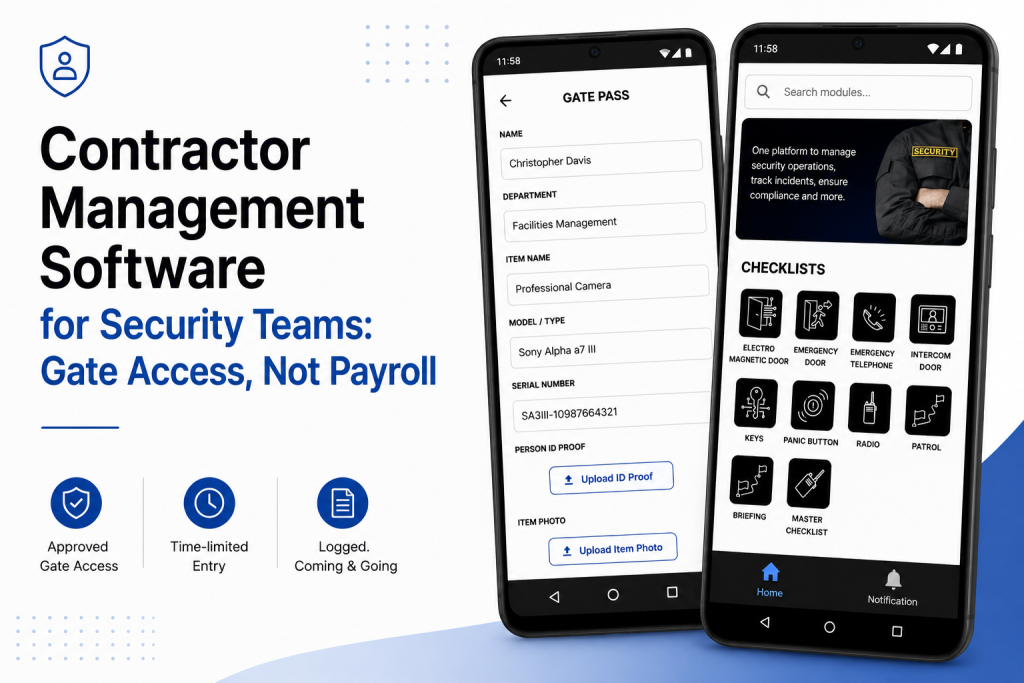
    Why “contractor management software” searches lead you to the wrong tool

    If you’re searching for contractor management software as a security team, you’ve probably already noticed the results don’t match what you need.

    I get this question a lot from site managers: “We searched for contractor management software and none of it does what we need. Is that normal?”

    Yes. Completely normal and worth explaining, because it’ll save a few wasted demo calls.

    Type “contractor management software” into Google and you’ll get Deel, Workday, a handful of HR-compliance platforms and a Capterra listicle comparing all of them.

    Every one of these tools is built for the same job: onboarding a contractor as a worker.

    Collecting their W-9, checking that their insurance is current, paying them in the right currency, tracking whether a certification expires next month.

    According to OSHA’s contractor safety guidance, that side of contractor management is real and regulated. It’s just not what a guard at a gate needs at 7am when a plumber shows up claiming he has a job order for Building C.

    Two different questions, one confusing search term

    “Is this person allowed to be here right now?” and “Is this person set up correctly as a vendor in our system?” are not the same question, even though both are called contractor management software.

    A security team almost never cares about the second one, which is payroll and legal’s job.

    A guard cares about the first and most contractor management software marketed under this term doesn’t answer it at all.

    What actually matters at the gate

    Ask a guard what goes wrong with contractors and the same handful of things come up, over and over.

    The contractor arrives and nobody at the gate knew they were coming, so someone’s calling around trying to find whoever approved it.

    The job finished two days ago, but access was never switched off because turning it off required someone to remember to do it.

    There’s no record of when the contractor actually left, just a guess based on when the truck was gone.

    A contractor wanders into an area they weren’t supposed to be in because nothing stopped them and nobody was watching that door.

    A client asks for a report of every contractor visit last month and someone has to dig through a logbook where three different guards updated it inconsistently.

    None of these are payroll problems. Their access problems are closer to what our gate pass management system already handles for one-off visitors.

    They need a system built around the gate, not the vendor file.

    What good contractor management software for security actually looks like

    Pretty simple, honestly. A contractor’s visit is scheduled and approved in advance, not improvised at the barrier.

    Access has a start and an end and it expires automatically rather than relying on someone to revoke it.

    Entry and exit both get logged the same way our geofence attendance tracking timestamps a guard’s location on a round.

    That means a contractor who checked in but never checked out shows up as exactly that: an open question, not a closed record.

    If a job needs an escort or is restricted to one part of the site, the system knows that and flags it rather than leaving it to memory.

    That’s the whole job. Not glamorous.

    But it’s the difference between a guard answering “who’s on site right now and why” in ten seconds, versus fifteen minutes of phone calls.

    Where this sits next to gate pass

    If you already use a gate pass format, contractor site access is basically the same mechanism.

    It’s applied to people who come back regularly and often need specific rules attached to inductions, restricted zones and a longer access window than a one-off visitor would get.

    Same underlying event, different shape.

    What we’re not claiming

    This doesn’t replace a real HR or compliance platform and it shouldn’t try to.

    It won’t issue a 1099. It won’t chase down an expired insurance certificate covered under something like OSHA’s recordkeeping rules.

    If that’s the gap you’re trying to close, you want Deel, Workday or something in that category.

    The two tools solve different problems and most teams end up needing both eventually.

    The bottom line

    If you went looking for contractor management software because you wanted to know who’s allowed on your site and when, you were in the right neighborhood but the wrong building.

    What you actually need is contractor management software built around the gate approved before arrival, time-limited, logged coming and going, visible to whoever’s asking.

    For More Details: https://avessecurity.com/

    Visit Our visit: https://www.linkedin.com/company/aves-security-management-system

    FAQs

    Isn’t contractor management software just for HR and payroll stuff?
    Most of what shows up under that name, yes, W-9s, insurance certs, payments. That’s a real need, just not a security one. If you’re trying to answer “who’s on my site right now and why,” you need something built around the gate, not the vendor file.

    We already use Deel/Workday for our contractors. Do we still need this?
    Probably, if security is a concern. Deel and Workday tell you that a contractor is set up correctly as a vendor. Neither one tells your guard whether that plumber at the gate is actually supposed to be there today. Different jobs and most sites end up needing both.

    What happens if a contractor forgets to check out?
    It stays open on the record instead of getting quietly closed. No guessing based on when the truck left the lot; if there’s no exit log, the system shows it as unresolved so someone can actually follow up.

    Can we restrict a contractor to certain areas of the site?
    Yes. If a job only needs access to one zone or needs an escort, that gets attached to the visit when it’s approved, not left to whoever’s at the gate that day to remember.

    How is this different from your regular gate pass system?
    Mechanically, it’s close. Contractor access is usually recurring, tied to inductions and open for a longer window than a one-time visitor pass. Same underlying idea, just shaped for people who come back.

    Can we pull a report of every contractor visit for a client or audit?
    Yes and it’s the same log the guards are already using at check-in and check-out, not a logbook that three different shifts filled in differently.

    Does this handle things like expired insurance or certifications?
    No. That’s still HR/compliance territory. OSHA-covered stuff like insurance and certs belongs with a platform like Deel or Workday. This tool answers “are they allowed on site right now,” not “are they legally compliant to be a vendor.”
  • Pocket Book: From Forgotten Notes to Permanent Proof

    Pocket Book: From Forgotten Notes to Permanent Proof

    A guard notices something worth remembering. A gate that sticks. A visitor who seemed off. A reminder for whoever takes over the post next.

    Where does that note actually go? Half the time, nowhere useful. A scrap of paper on a desk, a text to a supervisor that gets buried, a mental note that’s gone by the next shift.

    This is the small, unglamorous problem Pocket Book is built to solve. Not incidents, not formal reports. Just the ordinary notes that keep a site running smoothly when they’re written down and quietly cause confusion when they’re not.

    What Pocket Book Actually Is

    Pocket Book lives inside AVES under Logs & Reference, right next to SOP. Where SOP holds your uploaded documents and procedures. The tool holds the shorter, dated notes guards and managers log day to day.

    It’s not an incident report. It’s not an occurrence log. Think of Pocket Book as a proper electronic guard logbook, the digital version of the notebook a guard used to carry, minus the part where that notebook gets lost, left in a shack, or scribbled in handwriting nobody can read a month later.

    Some companies still call this kind of tool an e-pocketbook for guards, which is a fitting description. It’s personal, it’s quick to use and it’s meant to be checked constantly, not opened once a week.

    How Creating an Entry Actually Works

    Here’s exactly what the Pocket Book create flow looks like, based on the real screens, not a guess.

    From the Home dashboard, scroll to the Logs & Reference section and tap Pocket Books. From there, tap Create.

    The form asks for three things. A Date, picked from a calendar. A Time, picked from a clock selector. And a Message field, where the actual note goes.

    Fill those in and tap Submit. That’s the entire entry process. No categories to choose, no severity level, no extra fields to slow a guard down mid-shift.

    That simplicity is worth noting on purpose. A digital guard logbook that takes thirty seconds to fill out gets used. One that takes five minutes gets skipped, especially at 3am on a slow night when logging a small observation doesn’t feel urgent enough to justify the effort.

    How Reviewing Past Entries Actually Works

    Tap Records from that screen and you land on a screen titled Details of Pocket Book. It opens to a full month calendar, with today’s date already selected by default.

    Two things stand out here. First, the calendar lets you move month to month using the arrows on either side of the month name, so pulling up an entry from six weeks ago is a couple of taps, not a search through a notebook.

    Second, there’s a toggle above the results labeled My Books and Staff Books. My Books shows entries the current user logged. Staff Books shows entries logged by staff. Switching between them is one tap.

    If there’s nothing logged for the date you’ve selected, the screen tells you so, though it’s worth knowing the exact wording differs slightly depending on which toggle you’re on. My Books shows “No Data Available.” Staff Books shows “No Data available for the Selected Date.” Small inconsistency, but worth knowing so you’re not confused wondering if it means something different.

    Why the “My Books vs Staff Books” Split Matters More Than It Looks

    It’s easy to check one Pocket Book toggle, see nothing logged and assume there’s nothing to see. That’s the most common way this feature gets misread.

    My Books and Staff Books are genuinely separate views. A supervisor checking only My Books on a given date could easily miss entries their team logged under Staff Books for that same day. If you’re reviewing a date for any real reason, check both toggles, not just one.

    What’s Confirmed and What Isn’t Yet

    Being straightforward here matters more than sounding polished. The Pocket Book create and records flows above are confirmed directly from real screens. That part isn’t a guess.

    What isn’t shown anywhere in the current screens: whether a Pocket Book entry can be edited or deleted after it’s submitted, what exactly determines whose entries show up under Staff Books and whether the Message field has any length limit.

    If those details matter for how your team plans to use it, the honest answer is to ask for a live walkthrough of those specific flows before assuming how they work.

    Why This Beats a Handwritten Logbook

    If your team is still using paper, the case for Pocket Book as a way to replace handwritten security logbook habits comes down to four things paper can’t do well. A digital record can’t be torn out. It can’t go missing with the notebook. It timestamps automatically instead of relying on a guard’s memory of when something happened. And it’s searchable by date instead of flipped through page by page.

    None of that requires guards to change what they actually write. It changes what happens to the note after it’s written, which is usually where paper systems fail first.

    Getting the Most Out of Pocket Book

    Keep each entry to one note. A message field that turns into a running list of five unrelated observations is harder to scan later than five separate entries would be.

    Log things close to when they happen, not at the end of a shift from memory. The Date and Time fields exist for a reason.

    Check both toggles when reviewing a date for anything that actually matters. It takes one extra tap and avoids the most common way Pocket Book gets misread.

    What This Actually Looks Like Across a Real Shift

    A day shift guard notices the loading dock gate isn’t latching. Not incident-worthy, but worth the next shift knowing. They open Pocket Book, tap Create and log it in under a minute.

    That entry exists whether or not the guard mentions it verbally at handover. The night guard can check Records, filter to today’s date and see it under My Books if they logged it, or Staff Books if a supervisor is reviewing the whole team’s notes.

    This is where the two toggles in Pocket Book earn their place. A guard cares about their own notes. A supervisor cares about the wider picture. Same tool, two different views.

    Picture a slower shift too, nothing worth a formal report. On paper, that shift often produces nothing written down, since nothing felt urgent enough to bother. With Pocket Book, the bar is lower. A visitor who lingered too long. A flickering light. None of it’s an incident, but all of it becomes searchable history instead of a memory that fades.

    That’s really the point. One entry rarely matters. A pattern across two weeks, the same gate mentioned three times, is what a supervisor only catches if the notes exist somewhere searchable. Scattered notebooks can’t show that. A calendar can.

    Guards who know their Pocket Book notes get reviewed tend to write better ones. No complicated rollout needed, just the habit and a supervisor who actually checks.

    Where to Go From Here

    If your team is still relying on scrap paper or memory for the small stuff, that’s exactly the gap Pocket Book is built to close. Simple entry, simple review, one place instead of scattered notes nobody can find later.

    If you want to see the edit, delete and permission details that aren’t shown in these screens yet, ask for a walkthrough of those specific flows before rolling Pocket Book out to your team.

    A logbook nobody can search isn’t a record. It’s just paper that happens to be digital, waiting for the one day someone actually needs it and finds nothing there

    See how Pocket Book actually works. Book a quick walkthrough

    CONTACT US

    Website : https://www.avessecurity.com

    Linkedin: https://www.linkedin.com/company/aves-security-management-system/

    Instagram: https://www.instagram.com/avessecurity/

    What is Pocket Book in AVES?

    Pocket Book is a feature under Logs & Reference where guards and managers log short, dated notes. It functions as an electronic guard logbook, not an incident report or occurrence log, for the everyday observations that don’t need formal escalation.

    How do you create a Pocket Book entry?

    From the Home dashboard, go to Logs & Reference, tap Pocket Books, then Create. Fill in a Date, a Time and a Message, then tap Submit.

    What’s the difference between My Books and Staff Books in Pocket Book?

    My Books shows entries the current user logged. Staff Books shows entries logged by staff. They’re separate views, so checking only one can mean missing entries logged under the other.

    Can a Pocket Book entry be edited after it’s submitted?

    That isn’t confirmed in the current screens. Ask for a live demo of that specific flow before assuming how it works.

    Is Pocket Book meant to replace a handwritten security logbook entirely?

    That’s the intent. A digital guard logbook removes the risks paper carries, lost pages, illegible handwriting, no backup, while asking guards to log roughly the same information they already would on paper.

    What happens if you select a date with no entries?

    The screen tells you plainly rather than leaving it blank. Under My Books it shows “No Data Available.” Under Staff Books it shows a slightly longer message, “No Data available for the Selected Date.” Both mean the same thing, no entries exist for that day, but the wording isn’t identical between the two views, so don’t read it as a different kind of result.

  • Security Guard Audit Checklist: What Site Inspectors Actually Check

    Security Guard Audit Checklist: What Site Inspectors Actually Check

    By Nithish, AVES Security

    A security audit checklist is what separates a clean inspection from an awkward one. I’ve sat across the table during audits that went fine and audits that went badly and the difference was almost never the guards. It was the paperwork. An inspector asks for last month’s patrol records and someone digs out a stack of registers a few gaps here, a guessed time there, one page where the ink’s gone faint enough you can’t read it. Nobody’s accusing anyone of skipping rounds. The client just wanted proof and there wasn’t any sitting ready.

    That’s really what a security audit checklist is for. Not “did the guard do the job,” that part’s usually fine, but “can you show someone who wasn’t there that it happened.”

    What is a security audit checklist actually for

    A security audit checklist like this ends up in front of three kinds of people and they’re not all looking for the same thing.

    A client’s compliance officer is checking the contract got delivered right number of patrols, right intervals, incidents logged and closed. A regulator wants to see statutory requirements actually followed, not just claimed on paper. And your own supervisor doing a spot-check is trying to catch a site that’s slipping before the client notices it first.

    Different people, same underlying test though: does this record match something that actually happened and when.

    What a security audit checklist actually covers

    Every site has its own quirks, but pull those aside and most audits client, regulatory, internal, doesn’t matter end up checking the same seven things.

    Attendance and shift coverage. Was someone actually on site every hour they were supposed to be, no unexplained gaps between shifts.

    Patrol completion. Were the rounds walked, in the right order, not just marked done at the end of the night.

    Incident handling. Logged when it happened, escalated if it needed escalating, closed with an actual outcome not left open.

    Key and access control. Who had which key, when they took it, when it came back.

    Visitor and contractor movement. Who came in, when and who approved it?

    Equipment and defect reporting. Faults and damage flagged when they’re found ideally before the client spots them first.

    Training records. Can you actually show who was trained on what and when?

    An inspector isn’t expecting a perfect site. They’re expecting a record for each of those seven, produced without anyone scrambling to reconstruct it from memory the night before.

    Where a security audit checklist usually finds gaps

    It’s rarely the first item that trips a site up. It’s usually somewhere in the middle a patrol that got logged but has no timestamp to prove it was on schedule or a visitor with an entry time and no exit time. Any one of those looks minor on its own. Line up a month of them and that’s the gap between a clean audit and a follow-up visit.

    The worst version of this is when two records that should match don’t. A key register showing a guard holding keys during a shift, the attendance log says they weren’t even on site that’s not a gap, that’s a records problem and it’s a lot harder to explain away than a missing entry.

    How a security audit checklist changes on audit day

    None of this means guards do more work. It means the same seven categories get captured once, when they happen, tied to a timestamp and a name instead of written up later from memory. When a client or regulator wants the last quarter, that’s a filtered report instead of someone flipping through binders looking for the right week.

    It’s the same shift that’s already happened with patrol verification, key custody and occurrence logging on individual sites. A security audit checklist stops being a scramble before an inspection and just becomes a byproduct of the daily paperwork being accurate to begin with.

    Regulatory bodies like ASIS International publish general standards for physical security audits and most client contracts in this space borrow the same core structure coverage, incident handling and access control, at minimum.

    Preparing your security audit checklist before an inspection

    Don’t try to backfill history inspectors can usually tell a record written at the time from one written last week to cover a gap. Better to pull those seven categories from your duty roster and gate pass records for the last thirty days and see where the actual holes are that’s usually where a security audit checklist review starts anyway. Most of the time it’s one or two, not all seven. Fix the process from here, be straight about it if asked and treat the audit as the thing that told you where the weak spot actually was.

    The bottom line on your security audit checklist

    A security audit checklist isn’t a form you fill in before someone visits. It’s a check on whether the records you’re already keeping can stand on their own, without you in the room explaining what really happened. The sites that get through audits without drama aren’t the ones with the thickest file they’re the ones where the paperwork was right the first time it was written.


    Frequently asked questions

    What is a security audit checklist? A security audit checklist is a list of the records and controls an inspector checks to confirm a site’s security operations are actually happening as reported attendance, patrols, incidents, keys, visitor movement, equipment condition and training records.

    Who typically requests a security audit checklist? Three groups usually ask for it: a client’s compliance officer verifying contract terms are met, a regulator or licensing body confirming statutory requirements and a company’s own supervisor running an internal spot-check.

    How often should a security audit checklist be reviewed? Most sites review it monthly at minimum, with a fuller pass before any scheduled client or regulatory audit. Waiting until an audit is announced to check your records usually means finding the gaps too late to fix them.

    What’s the difference between a security audit checklist and a daily guard checklist? A daily guard checklist covers what happens during a single shift gear checks, rounds, handover. A security audit checklist looks backward across a period of time to confirm those daily records are complete, consistent and provable.

    Can a security audit checklist be done digitally instead of on paper? Yes. A digital checklist ties each entry to a timestamp and the person who logged it, which is what most inspectors are actually looking for a record they don’t have to take on trust.

    What happens if gaps show up during a security audit? A gap on its own usually isn’t fatal to an audit. What matters more is whether the company can explain it and show the process has since been fixed, rather than trying to backfill records after the fact.

    For more details visit our website: https://avessecurity.com/

  • Security Post Orders: Fixing the Gap Guards Fall Through

    Security Post Orders: Fixing the Gap Guards Fall Through

    You put real effort into your security post orders. You covered the doors, the contacts, the access rules.

    Then something goes wrong at 2am and the guard on duty had no idea what to do.

    If that sounds familiar, you are not doing anything wrong as a manager. You are running into a problem almost every security company hits. The document exists. It just isn’t working.

    This guide walks through why that happens, what a security post order actually needs to contain and how to fix the gap between “we have post orders” and “guards actually follow them.” No fluff, no generic templates copied from a dozen other sites. Just what actually works on real posts.

    What a Security Post Order Actually Is

    A security post order is not a job description. It is not a duty roster either.

    It is the site-specific instructions for one physical post, at one site, written for the guard standing there right now. Some companies call these security guard post orders instead, but the idea is the same.

    A duty roster tells someone when to show up. A general “security guard duties” page tells them what the role covers everywhere. A security post order tells them what to do at this exact gate, this exact lobby, this exact loading dock.

    That distinction matters more than it sounds like it should. A guard who only knows the generic version of the job fills in every site-specific gap on their own. That is exactly where liability shows up, where clients get frustrated and where incidents happen that could have been avoided with one clear sentence written down in advance.

    Why Most Post Orders Fail Once They’re Written

    Here is the part most guides skip. Writing the security post order is the easy part. Keeping it useful is where almost every site falls apart.

    They go stale fast. A security post order gets written once at site handover. Six months later the client changed the after-hours contact, a door schedule shifted and nobody updated the document. The guard is now working from instructions that describe a site that no longer exists.

    They try to cover everything. A fifteen-page post order feels thorough on paper. In practice, nobody reads fifteen pages in the middle of a shift. Length feels like diligence. It actually kills usability.

    Nobody owns the update. Ask most operations managers who is responsible for keeping security post orders current and you will get a pause before an answer. Without a named owner, updates happen never.

    There’s no proof anyone read it. A binder in a guard shack does not confirm the current guard has actually seen the current version. That gap is where most “the guard didn’t know” incidents actually start.

    None of this means security post orders are the wrong tool. It means most companies are running a good idea badly.

    The Real Cost of Getting This Wrong

    This is the part that’s easy to underestimate until it costs you a client.

    An outdated post order does not just create confusion. It creates security liability. If a guard follows instructions that no longer match the site and something goes wrong, the paper trail shows your company gave them wrong information. This is also where guard accountability breaks down, because a guard can’t be held to instructions that were never accurate in the first place.

    Turnover makes this worse. New guards rotate through posts constantly in this industry. Every rotation is a moment where an unclear or outdated security post order turns into a real mistake, not a hypothetical one.

    And clients notice. A client who catches a guard not knowing basic site procedure starts wondering what else your company is getting wrong. That is how contracts get lost, not through one dramatic failure but through a slow loss of confidence.

    The Five Things Every Post Order Needs

    Strip away the extras and a security post order that actually works comes down to five parts.

    Post boundaries. What area this post covers and exactly where responsibility hands off to the next post. No gray zones.

    Standing instructions. The default state of the post. Which doors lock on schedule, what routine checks happen without being told.

    Access rules. Who walks through without escort, who signs in, who gets turned away. Spelled out by role, not left to judgment in the moment.

    Emergency contacts. Real names and real numbers for this site. Not a head office line that rings through to voicemail at 3am.

    Exceptions and escalation. What falls outside normal instructions and exactly who to call when something doesn’t match what’s written.

    If a security post order covers those five things clearly, it works. If it tries to cover every hypothetical situation on top of that, it stops getting read.

    How to Write Post Orders Guards Will Actually Follow

    Start from real incidents, not imagined ones. The best security post orders come from actual questions guards have asked at that post, not a template built from a desk somewhere else.

    One instruction, one sentence. If an instruction needs a paragraph to explain, it belongs in training material, not the post order itself.

    Name a person, not a department. “Contact facilities” solves nothing at 2am. A name and a direct number gets a problem handled instead of routed into a voicemail loop.

    Update the moment something changes. Do not wait for an annual review. The day a client changes a rule is the day the security post order should change too.

    Confirm the guard actually read it. This is the step almost everyone skips. A printed page on a wall does not prove anything. Some form of sign-off, even a simple log, closes that gap.

    Paper vs Digital: An Honest Look

    You might be wondering if this even needs software, or if a well-organized shared folder solves the problem.

    Here’s the honest answer. A shared folder fixes the “which version is current” problem. It does not fix the “did the guard actually read it” problem on its own.

    That second gap is where most companies get burned and it’s worth being upfront about the limitation. No system, digital or paper, replaces a supervisor who actually walks the post and checks. Software reduces the risk. It does not eliminate the need for management attention.

    What digital tools genuinely solve well is version control and searchability. One current file per post, tagged by department, findable by name instead of buried in a binder nobody has opened since onboarding.

    That’s the gap most guard instructions software claims to close and most of it doesn’t.

    Where AVES Fits Into This

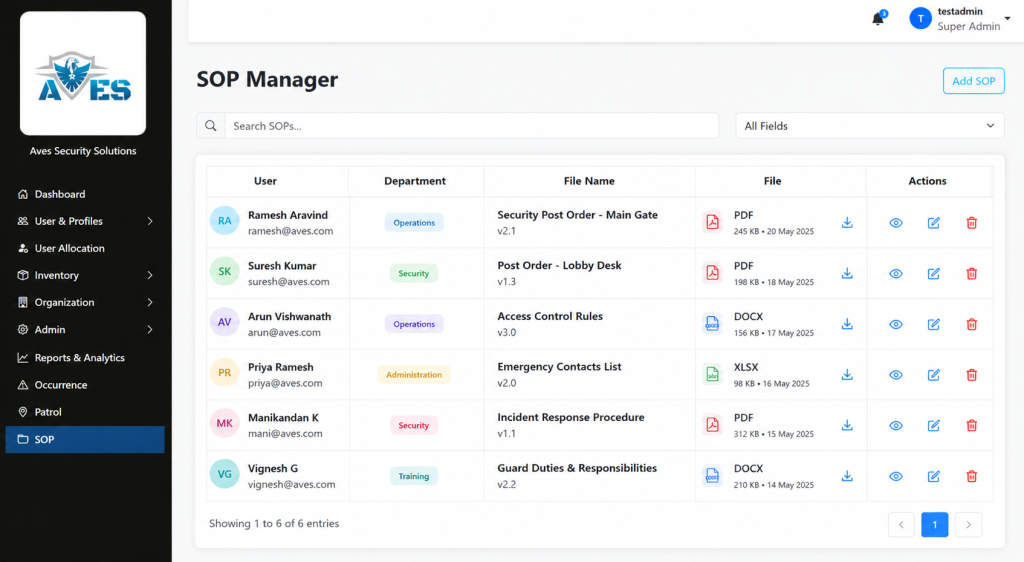
    AVES has a real, confirmed feature for exactly the version control problem above. It’s called SOP Management and it works as a document repository built for this kind of site procedure. Think of it less as guard instructions software with built-in workflows and more as the single source of truth those instructions need to live in.

    You upload a file, tag it to a user and a department and give it a clear file name. It shows up in a searchable list where anyone can find it by department, username, or file name. Deleting an outdated version takes two confirmation steps, not one accidental click, so an old copy doesn’t disappear by mistake while the current one is still needed.

    To be fully transparent, SOP Management is a document upload and search tool. It is not an interactive checklist builder where guards check off individual steps inside the app. If that’s what you’re picturing, it’s worth knowing that upfront rather than finding out later.

    AVES also has a confirmed Shift Briefing capability, built around guards acknowledging instructions before going on duty, which is the natural next step after centralizing security post orders. The detailed screen-by-screen workflow for that feature isn’t something we can walk you through yet and we’d rather tell you that plainly than describe steps that don’t exist.

    Where to Go From Here

    If your current security post orders are living in a binder or scattered across old email attachments, the fix isn’t complicated. It’s organizational first and tools second.

    Start by naming one owner per site. Then get every current post order into one searchable place instead of several. That single change solves most of the version confusion described above.

    If you want to see how AVES’s SOP Management handles that part, a short walkthrough will show you exactly what it does and, just as importantly, what it doesn’t do yet, so you can decide if it fits how your team actually works.

    A binder guards stop reading is not backup protection. It is a liability sitting quietly on a shelf, waiting for the one shift where it mattered and nobody opened it.

    See how AVES keeps every post order current. Book a quick walkthrough.

    CONTACT US

    Website : https://www.avessecurity.com

    Linkedin: https://www.linkedin.com/company/aves-security-management-system/

    Instagram: https://www.instagram.com/avessecurity/

    What are security post orders, exactly?

    Think of security post orders as the cheat sheet for one specific post, not the whole job. They spell out what a guard does at that particular gate or lobby, down to which doors get checked and who to call if something’s off. A generic job description won’t tell you any of that. Post orders will, or at least they should.

    Aren’t security post orders basically the same as SOPs?

    Not quite. Standard operating procedures cover the big stuff that applies everywhere, like what to do if someone collapses on site. Security post orders are narrower and messier in a good way. They’re written for one post, one set of doors, one set of quirks that only that location has. You need both. One without the other leaves a gap.

    Do I really need to go digital, or can paper work fine?

    Paper can work. It’s just harder to keep straight once you’ve got three shifts and a stack of photocopies floating around. The real problem isn’t paper versus digital. It’s that nobody can tell which copy is the right one. Fix that part and the format matters a lot less.

    Can I just use a post order template for every site?

    A template’s fine for the skeleton, five sections, same structure every time. But the actual content has to be specific to that post. Copy-paste a template with the site name swapped and you’ve basically written nothing useful. Guards can tell the difference immediately.

    Is there software that actually helps manage this across sites?

    Some. though I wouldn’t call it guard instructions software exactly. AVES has an SOP Management feature that at least solves the “which file is current” mess, one document per post, searchable by department or file name instead of buried in someone’s inbox. It won’t replace a supervisor actually walking the post and checking. Nothing does that. But it kills the version-control headache that causes most of these problems in the first place.

  • Deadly Gaps, Proven Fix: Digital Inspection Checklist

    Deadly Gaps, Proven Fix: Digital Inspection Checklist

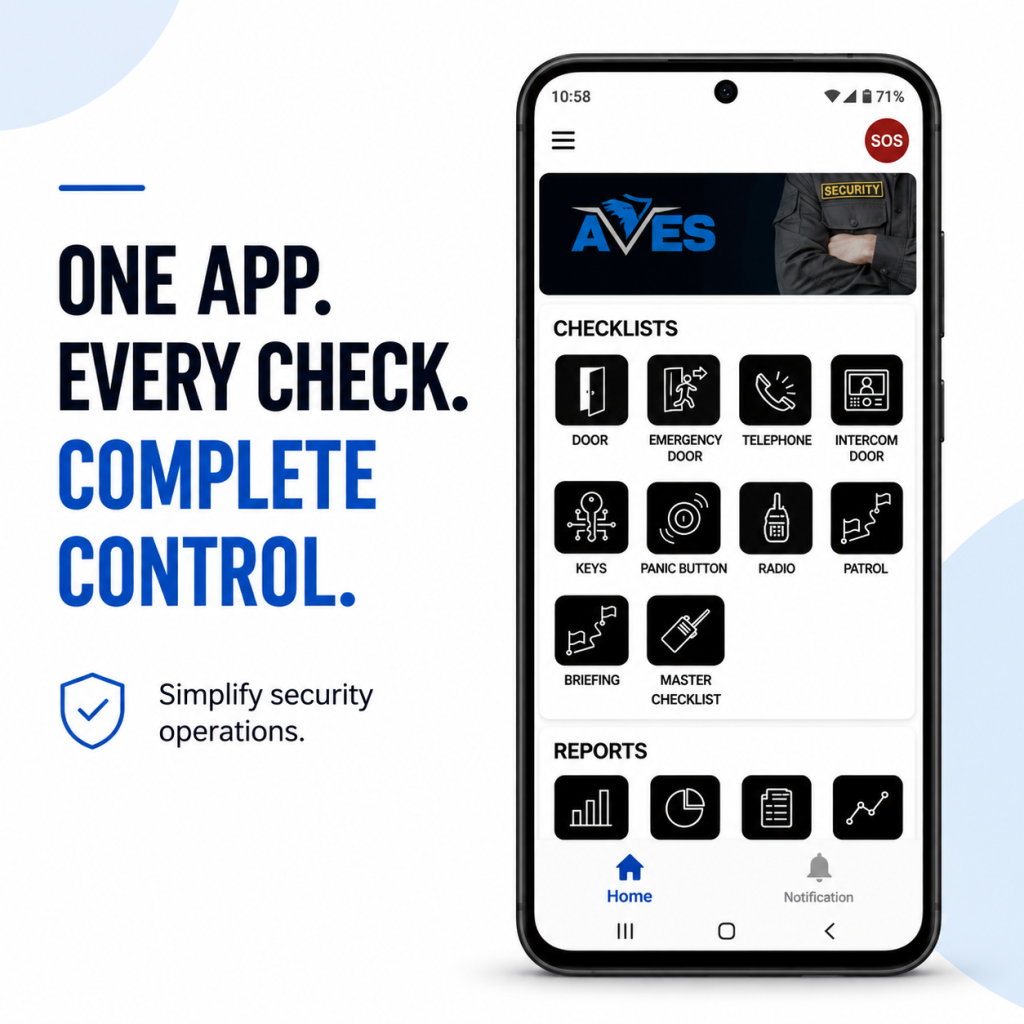
    You already know the feeling. It’s 6 AM, the shift just changed and somewhere in the back of your mind is a question you don’t want to ask out loud: was the panic button actually tested last night, or did someone just sign the sheet?

    That doubt is exactly why a digital inspection checklist exists and if you’re reading this, you’ve probably already lived through the moment where a paper checklist let you down.

    Maybe it wasn’t a disaster. Maybe it was just a client walkthrough where the emergency phone didn’t ring and the log said it was “checked” three hours earlier. Either way, you felt it. That small, sinking realization that your paperwork and your reality had quietly stopped matching.

    That’s the exact question a digital inspection checklist exists to answer, before a client or an insurer ever has to ask it.

    The Fear Nobody Says Out Loud

    Security operators don’t lie awake worrying about the equipment itself. They lie awake worrying about the gap between what the paperwork says and what actually happened on site.

    A paper form can be filled out from memory at the end of a shift. It can be backdated. It can say “all clear” on a piece of equipment nobody actually walked over to touch. That’s not a guard problem. That’s a systems problem and it’s exactly the gap a digital inspection checklist is built to close.

    If you’ve ever had to explain to a client why a piece of safety equipment failed during the one moment it mattered, you already understand why this matters more than almost anything else on a guard’s shift list.

    What a Digital Inspection Checklist Actually Solves

    Here’s the part most people get wrong when they first look into this. They think a digital inspection checklist is just a fancier form. It isn’t.

    The real value of a digital inspection checklist is the timestamp. A record that gets created the moment a guard is standing in front of a panic button, testing it, not the moment they get back to the desk and remember to write it down.

    That single shift, from memory-based logging to real-time logging, is what makes a digital inspection checklist worth adopting in the first place. It’s not about looking more modern. It’s about closing the exact gap that keeps security managers up at night.

    Six Things That Actually Need Checking, Every Single Shift

    A good digital inspection checklist doesn’t try to cover everything under the sun. It focuses on the equipment that matters most in an actual emergency:

    • Emergency telephones, confirmed operational and connected
    • Emergency doors, checked for unobstructed operation
    • Panic buttons, tested and confirmed active
    • Intercom doors, verified and logged
    • Electromagnetic doors, verified and logged
    • Radios, verified and logged

    Notice what’s on that list. None of it is decorative. Every item is something that, if it fails silently, turns a manageable situation into a genuinely dangerous one.

    This is the part that separates a serious digital inspection checklist from a generic to-do app repackaged for security teams. It isn’t trying to track everything. It’s trying to make absolutely sure the handful of things that matter most never get skipped.

    The Doubt You’re Probably Carrying Right Now

    If you’re evaluating whether to move to a digital inspection checklist, you’re probably carrying a few quiet doubts. Let’s name them honestly instead of pretending they don’t exist.

    “What if my guards just fake the digital version too?”

    Fair concern. The difference is that a digital inspection checklist creates a record that can’t be backdated or edited after the fact the way a paper form can. A guard can still choose not to test a panic button, but they can’t quietly write “9 PM” on a form at 11:45 PM and make it look accurate. The system captures when the entry was actually made.

    “Is this going to be complicated to roll out?”

    This is where a lot of people overthink it. A digital inspection checklist doesn’t require retraining your entire operation. Guards are already doing the physical check. The tool just changes what happens after they touch the equipment, not the check itself.

    “What if the software becomes another thing I have to babysit?”

    This is the most reasonable fear on the list about any digital inspection checklist and it deserves an honest answer, not a sales pitch. Any digital inspection checklist is only as good as whether your team actually opens it every shift. The ones worth choosing are the ones simple enough that a tired guard at 3 AM can use it without friction. That’s the real test, not the feature list.

    What Good Actually Looks Like

    Picture the version of your operation where this works the way it’s supposed to.

    A guard starts their shift. They walk the fixed equipment list, physically testing each item. Each check gets logged the moment it happens, not reconstructed later from memory. By the time your morning report lands, you already know whether every panic button, door and radio on site was actually verified, not just claimed to be verified.

    That’s the entire promise of a digital inspection checklist. Not more paperwork. Less uncertainty.

    When a client asks you to prove equipment was checked before an incident, you’re not scrambling through a filing cabinet. You’re pulling up a timestamped record that speaks for itself.

    Why This Matters More Than It Looks Like It Does

    Most security operators don’t think about equipment checks as a competitive advantage. They think of them as a chore, something guards grumble through because someone above them said it’s required.

    That mindset is exactly what a digital inspection checklist is designed to change. Every completed, timestamped check is proof of due diligence. It’s the difference between a security company that can defend its record in a liability conversation and one that’s hoping nobody ever asks hard questions.

    If you’ve ever felt that quiet unease about whether your equipment checks would actually hold up under scrutiny, that feeling is worth listening to. It’s usually a sign the process, not the guards, needs fixing.

    The Honest Trade-Offs

    No tool solves everything and it would be dishonest to pretend a digital inspection checklist is a silver bullet.

    It doesn’t replace the physical act of checking equipment. A guard still has to walk over and test the panic button. What it changes is whether that action leaves behind proof and whether that proof can be trusted months later when it actually matters.

    It also won’t fix a culture problem on its own. If a team doesn’t take the underlying duty seriously, no piece of software forces genuine diligence. What a digital inspection checklist does is make it much harder to fake diligence that isn’t there, which tends to change behavior on its own over time.

    Where This Leaves You

    If you’ve made it this far, you already know the real question isn’t whether equipment checks matter. You know they do. The real question is whether you can currently prove they’re happening the way your paperwork says they are.

    That’s the exact gap a digital inspection checklist is built to close. Not a bigger to-do list. A record you can actually stand behind.

    You don’t need to overhaul your entire operation to adopt a digital inspection checklist. You need a system that captures the moment a check actually happens, instead of the moment someone remembers to write it down.

    That’s the whole shift. And once you see it working on your own site, it’s hard to imagine going back to a clipboard.

    See how a digital inspection checklist works on a real site → Book a free walkthrough

    CONTACT US

    Website : https://www.avessecurity.com

    Linkedin: https://www.linkedin.com/company/aves-security-management-system/

    Instagram: https://www.instagram.com/avessecurity/

    What equipment actually needs checking every shift?

    That six things and they’re not random.That’s the list. Not because other equipment doesn’t matter, but because these six are the ones you reach for when something’s already going wrong. If they don’t work in that moment, nothing else about your setup matters much.

    Can someone go back and edit an entry after it’s submitted?

    That’s the whole reason to move off paper in the first place.
    A form filled out from memory can say whatever the person writing it wants it to say. A record created the second someone actually tests the panic button can’t be rewritten later to look tidier than reality. That gap between “what happened” and “what got written down” is exactly what this kind of system is built to close.

    How disruptive is it to actually switch over?

    Less than people expect, usually.
    The underlying job doesn’t move an inch. Guards are already walking the site and testing equipment. All that’s really shifting is how that gets recorded. Most teams find their footing within a shift or two, not weeks.

    What if my guards just fake the digital version too?

    Fair concern. The difference is that a digital inspection checklist creates a record that can’t be backdated or edited after the fact the way a paper form can. A guard can still choose not to test a panic button, but they can’t quietly write “9 PM” on a form at 11:45 PM and make it look accurate. The system captures when the entry was actually made.

  • “Security Guard Checklist: The Foolproof Shift Template”

    “Security Guard Checklist: The Foolproof Shift Template”

    Ask five site supervisors for their “security guard checklist,” and you’ll get five different PDFs, and none of them will match what actually happens on a shift. Some are a single page with ten boxes on it that could apply to literally any job site. Others run four pages long and read like they were drafted by someone in a compliance office who’s never walked a perimeter at 2 a.m. with a flashlight that’s about to die.

    Neither version gets used properly, and honestly, guards can’t be blamed for that. A checklist has to fit into the time a shift actually gives you. Eleven minutes between rounds isn’t eleven minutes to fill out a form.

    So here’s a security guard checklist built the other way around starting from what a shift actually looks like, hour by hour, and working out what needs to be written down at each stage.

    Why Most Security Guard Checklists Don’t Get Filled In Properly

    Talk to enough guards and supervisors and the same complaints keep coming up.

    Length is the obvious one. Nobody’s filling out fifty line items in the fifteen minutes before a shift starts. What happens instead is that the form gets completed after the fact, from memory, sitting in the guard shack, which more or less defeats the point of having it.

    There’s also the problem of everything being lumped together. Gate checks, radio tests, end-of-shift notes, all sitting in one long undifferentiated list. A guard glancing at that mid-shift can’t quickly tell what’s due right now versus what’s for later.

    Then there’s the stuff a plain checklist just can’t capture. Say a door’s been propped open with a brick and you’ve told the site manager about it. Where does that go on a form made entirely of tick boxes? Usually nowhere. It ends up scrawled in the margin, or in a separate notebook that nobody ever cross-references again.

    And the last one is more of a trust issue. If a checklist doesn’t line up with what a supervisor or a client actually looks at during a review, guards catch on fast, and the whole thing starts feeling like busywork.

    None of that gets solved by tacking on more boxes. It gets solved by matching the security guard checklist to how a shift actually unfolds, and by making sure whatever gets written down has somewhere real to go afterward.

    Security Guard Checklist, Broken Down by Stage of the Shift

    Before You’re Even Posted

    The first five or ten minutes on site, ideally before you relieve whoever’s coming off shift.

    • Uniform and ID badge on and correct for the site
    • Radio switched on, charged, tested on the right channel
    • Flashlight charged and actually working (not “worked yesterday”)
    • Duty phone or panic button charged, if the site issues one
    • Keys, cards, or fobs collected and checked against the key log
    • Previous shift’s incident log or occurrence book read through
    • Any handover notes from the outgoing guard read and understood, not just glanced at
    • Standing orders checked in case anything’s changed since last shift
    • PPE checked, if the site calls for it

    If something’s off here dead radio, keys missing from the log that’s the moment to say something. Not two hours in, once you’ve already started rounds without it. This is the part of the security guard checklist that gets rushed most often, and it’s the cheapest one to get right.

    On Rounds

    This is the part guards carry with them, clipboard in hand or phone in pocket. It has to be quick, or it slows the whole patrol down and people start skipping it.

    At each point on the round:

    • Door or gate is in the state it’s supposed to be in
    • Locks and hinges look fine, nothing pried or forced
    • Lighting’s working in the area
    • Fire exits and extinguishers aren’t blocked
    • Anything unusual a car that shouldn’t be there, someone loitering gets a note
    • Checkpoint scanned or logged, whatever method the site uses
    • Time noted

    At access points specifically:

    • Visitor log current, nobody unregistered wandering around
    • ID actually checked for anyone coming in, not waved through
    • Deliveries logged

    The time matters more than people think. A checkmark tells you the check happened; a timestamp tells you when. That gap is exactly what digital patrol tools are built to close automatically. We go into that in guard duty verification if you want the fuller picture. It’s also a piece of a security guard’s checklist that a paper form struggles to prove after the fact.

    In the Control Room

    For anyone posted there or rotating through:

    • Camera feeds all up and recording
    • No dead cameras that haven’t been flagged
    • Playback tested, works when you need it to
    • Alarm panel showing the correct armed/disarmed status
    • Access control system logging properly
    • Storage isn’t about to run out
    • Any system alerts actually looked at, not dismissed

    Even sites without a real control room usually have someone holding this responsibility. That person should still run through it once at the start of the shift and once more before handing off.

    Logging What Actually Happened

    This is the step that gets skipped most, and it’s usually the one that matters most when something goes wrong later.

    • Every incident logged with a time, a location, and a description that isn’t three words
    • Photos where it’s safe and relevant to take one
    • Anything serious escalated to a supervisor or client contact, not sat on
    • Log reviewed before the shift ends, not left half-finished
    • Lost property logged and put somewhere secure
    • Maintenance stuff: a broken light, a lock that sticks noted separately so facilities actually see it

    An occurrence log is only worth something the day a client rings up asking what happened at 2 a.m. on the 14th and someone can actually answer. It’s arguably the most overlooked line on the whole security guard checklist. We’ve written more about what a decent log should include in the daily occurrence log walkthrough.

    Handing Off

    This is where a good shift either counts for something or doesn’t. A guard can do everything right for eight hours and still leave the next person in the dark if the handover is just a wave and “nothing happened.”

    • Everything above is actually completed, not half-done
    • Keys, radios, equipment physically handed over
    • Anything unresolved flagged clearly, not left for the incoming guard to discover
    • Incident log gone through together, not just left on the desk
    • Any follow-ups noted with where things stand
    • Handover signed or timestamped by the person coming on

    If the site runs a set roster, this is also a decent moment to double-check that the next shift is actually staffed the way it’s meant to be, worth checking against the security guard duty roster. Handover is the last checkpoint on the security guard checklist, and it’s the one that decides whether everything before it actually meant something.

    Paper Security Guard Checklist or an App: Does It Matter?

    Paper’s fine. Guards have been using clipboards for as long as there’s been a job to do, and there’s nothing wrong with printing this list and sticking it in a guard shack.

    Where it falls apart is proof. A ticked box tells you the box got ticked; it doesn’t tell you the guard was actually standing at the checkpoint when they ticked it. On a slow night, it’s not hard to fill in ten boxes at once from memory near the end of a shift. That’s fine right up until a client wants proof of coverage, or an incident needs to be matched against the exact minute a patrol went past a specific door.

    That’s the gap digital tools are built for: a guard scans a checkpoint or logs something in the moment, the time and location attach on their own, and a supervisor can actually see the shift happening rather than reconstructing it off a clipboard the next morning. If attendance by location is also something your team tracks, geofence attendance covers how that fits alongside patrol checks.

    Format matters less than structure, though. A checklist built around how a shift actually runs pre-shift, patrol, control room, incidents, handover gets used whether it’s on paper or on a phone. A forty-item list with no shape to it usually doesn’t, no matter what it’s printed on.

    Adjusting This Security Guard Checklist for Your Own Site

    Treat this as a starting point, not something to follow word for word. A retail site is going to care a lot more about the visitor log than about a fence line. A warehouse is roughly the reverse. The five stages hold up across both; what changes is which specific items sit inside each one.

    One rule holds regardless of how you tweak it: if a check doesn’t have a clear instruction to be written down, it won’t get written down consistently. Build around where the information needs to end up, not just what someone’s supposed to look at.

    Last Word on This

    A security guard checklist earns its place by matching how a shift actually goes, not by looking thorough on paper. Five stages: pre-shift, patrol, control room, incidents, handover cover what needs checking without turning the job into paperwork.

    Print it out and laminate it, or build it into a patrol app. Either way, the point’s the same: every check needs somewhere real to go once it’s done.

    Curious how AVES turns this same checklist into a digital patrol and occurrence log that guards actually use on shift? Book a walkthrough and see it on a real screen →

    CONTACT US

    Website: https://www.avessecurity.com

    LinkedIn: https://www.linkedin.com/company/aves-security-management-system/

    Instagram: https://www.instagram.com/avessecurity/

    FAQ

    Do I need a separate checklist for every site?

    Not a separate one exactly, more of an adjusted one. The five stages carry over no matter the site, since this security guard checklist is meant to be a base, not a rigid form. What changes underneath them is which specific items matter, since a warehouse and a retail store aren’t watching for the same things.

    Paper or phone, which one should guards actually use?

    Both get the job done day to day. Paper’s simple, and guards already know how to use it without training. The catch is what happens afterward: the paper shows the boxes got filled in, not that anyone was actually there when it happened. A phone-based version timestamps and locates the entry without anyone having to think about it.

    What’s the step guards skip the most?

    Getting the handover actually acknowledged by the incoming guard, rather than just talked through on the way out the door. Easy to skip, but it’s usually the one thing that decides whether the next shift can trust what’s on the page.

    Isn’t this the same thing as a duty roster?

    No roster tells you who’s working and when. This is what that person is meant to actually do once they’re on post. They sit next to each other, but one’s about staffing and the other’s about what happens during the shift itself.

    Does filling in a checklist actually prove the rounds happened?

    Not by itself. It shows boxes were ticked, not necessarily when or where. If you need something closer to actual proof, timestamped checkpoint scans tied to a location, that’s what guard duty verification covers.

  • Training Management System for Security Guards: The Essential Guide to Tracking Training and Records

    Training Management System for Security Guards: The Essential Guide to Tracking Training and Records

    A training management system is supposed to fix one simple problem: training that nobody wrote down might as well not have happened. Ask most security companies how they track guard training, though, and you’ll hear the same answer nine times out of ten. A folder somewhere. A supervisor’s memory. Maybe a spreadsheet nobody’s touched since spring.

    A guard sits through a class. Nobody logs it anywhere searchable. Fast forward three months, a client wants proof that every officer on their site completed fire safety training, and now you’re digging through old attendance sheets and screenshots from a group chat, trying to reconstruct something a proper training management system would’ve handed you in thirty seconds.

    Here’s what most companies don’t want to face: training nobody wrote down doesn’t count, not to a client, an auditor, or an insurance adjuster. That’s the exact gap a training management system exists to close, and before you convince yourself your current setup is “fine,” it’s worth understanding what a good one actually looks like.

    Why a Training Management System Matters More Than Most Companies Realize

    Two reasons this matters, and most companies only ever think about one of them.

    First, client trust. When a client asks whether your guards are trained for their site, handing them dates and records from a real system builds a lot more confidence than “yeah, we handle that.” Contracts these days increasingly expect proof upfront, not a vague promise that training happens somewhere in the background.

    Second, and this is the one that really catches people off guard: liability. If something goes wrong on a shift and training becomes a question, a training management system that shows exactly what an officer completed and when is the difference between a defensible position and pure guesswork. Lawyers and insurers don’t ask fuzzy questions. “We train our guards” won’t cut it. A dated record will.

    Without one behind you, both of those things ride entirely on someone’s memory holding up months, maybe years, after the fact. That’s a bad place to be standing when it counts.

    How a Training Management System Works in AVES

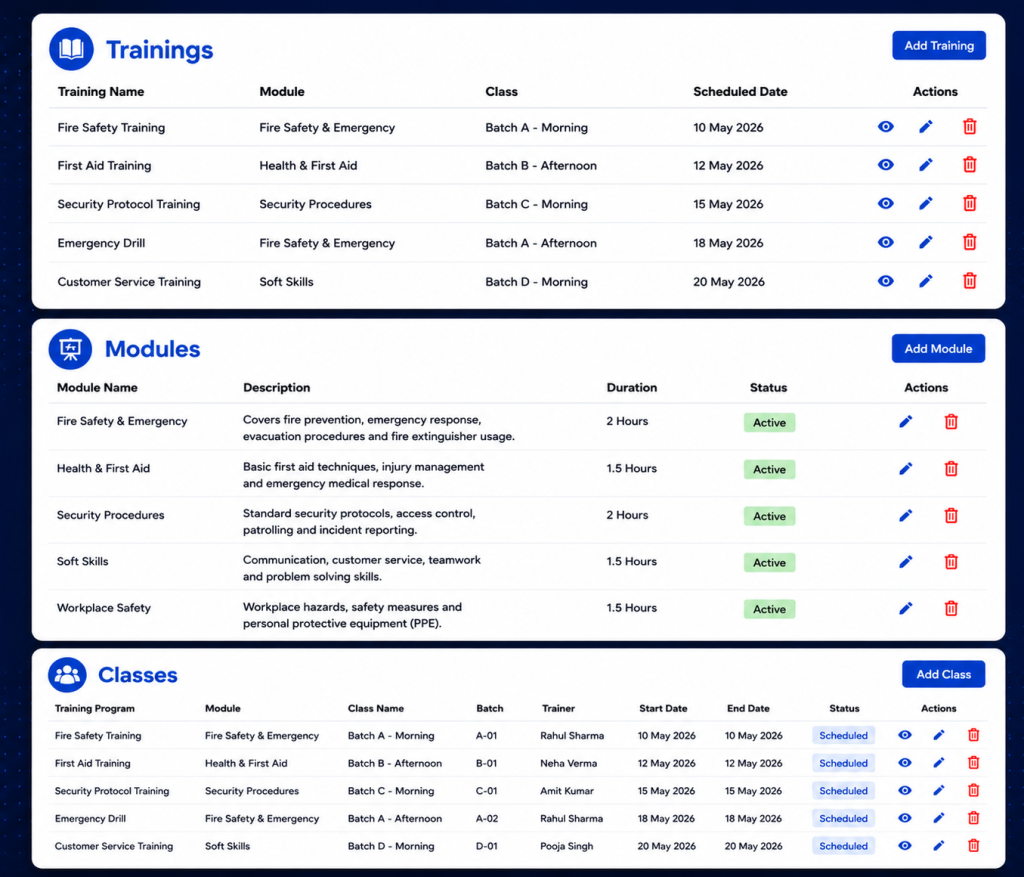
    AVES builds its training management system into the Staff Development section of the mobile app, right next to Performance Development Plan. Open Training and two paths show up: All Trainings and Records. They do very different jobs, so it helps to know which one you’re actually in.

    All Trainings is where sessions get built and managed. You can add or update training programs here, and, this part matters, assign them to specific users or departments instead of blasting them out to the whole team. Not every guard needs every training. Fire marshal certification might apply to one shift only. A first-aid refresher might just be for one department. Being able to target instead of broadcast keeps the list something people actually pay attention to, instead of noise they scroll past.

    Records, labeled Security Trainings, is the other half, and it works nothing like the first. Picture a calendar. You flip through months, land on a day, and see whatever got logged for that date. Nothing there? It just says so: no data available for that date. That’s the piece that turns a one-off event into something you can actually revisit later. Instead of asking a supervisor “hey, when was that class again,” you click the date and there’s your answer.

    One thing you won’t find here: a certification-expiry tracker, or anything resembling a compliance-scoring dashboard. If tracking exact expiry dates and renewal reminders matters to your business, that detail lives inside the individual training entry itself. The list and calendar views don’t surface it automatically.

    Getting Real Value Out of Your Training Management System

    A training management system is only as good as the habits around it. A few habits separate a training record that’s actually useful from one that just looks fine sitting there.

    Name your sessions like they mean something. “class1” tells you nothing six months later, not even to the person who typed it in. “Fire Safety Refresher, Site 4, Q3” tells a whole story the moment someone opens it.

    Only assign by department when the entire department genuinely needs it. It’s tempting to go broad “just in case,” but that buries the training under noise for everyone who didn’t need it, and makes it harder to spot who actually still has to complete it.

    Log it the day it happens. Records sorts by date, so a session entered three days late lands under the wrong day. It chips away at accuracy quietly, until you notice it during an audit and it’s too late to fix.

    Check Records regularly. Not just when a client comes asking. A monthly look catches gaps while you can still do something about them.

    The Mistakes That Undo a Training Management System

    Same handful of mistakes, over and over, even at companies with a solid system already sitting in their pocket.

    Vague naming tops the list. A training log full of “class1,” “class2” technically counts as a record. It just fails the actual point, which is answering a real question later, quickly and without guesswork.

    Over-assigning is next. Push a single-department training out company-wide and you bury the people who actually need to act on it under a pile of people who don’t.

    Then there’s confusing scheduled with logged, a subtler trap. A session sitting in someone’s calendar or a group chat thread isn’t proof of anything. Only an entry under Records, for that date, counts.

    And the big one: waiting for a client to ask before you check your own records. By then you’re not reviewing, you’re scrambling. Scrambling almost never produces a clean answer.

    Where a Training Management System Fits Into the Bigger Picture

    It doesn’t live on its own island. It ties directly into your duty roster and shift assignments, because whether a guard was actually qualified for a given post on a given shift depends partly on their training record. It sits right beside Performance Development Plan too, both feeding into a documented picture of how ready your team really is, not just how ready you assume they are.

    A training session nobody logged is a session you can’t prove happened. In this line of work, what you can prove tends to matter more than what you simply know to be true. AVES keeps checklists and dated training records in one training management system your guards already use for shifts and attendance, with the option to assign precisely instead of blasting everything to everyone by default.

    If you want to see how AVES handles this as a training management system in practice, you can explore the platform and request a demo at avessecurity.com.

    Frequently Asked Questions

    What is a training management system for security guards?

    A training management system for security guards is a software that helps you keep track of the training that security guards have completed. It is a place where you can log, assign and track the training of security guards, which’s better than using paper sign-in sheets or trying to remember who did what. This system gives you a record of who completed what training and when which’s very useful.

    Why do security companies need a training management system for security guards?

    Security companies need a training management system for security guards because clients and insurers often ask for proof of training. A training management system for security guards gives you the proof you need so you can give them an answer instead of just guessing.

    How is training assigned in a training management system like AVES?

    In a system like AVES training can be assigned to security guards or to entire departments. This means that each security guard only sees the training that’s relevant to them instead of seeing a long list of training that does not apply to their job or the site they work at.

    Does a training management system track certification expiry dates?

    Not all training management systems track certification expiry dates automatically. For example in AVES you have to look at the training entry to see the expiry and renewal details. So if you need to keep track of these dates for compliance you should check them directly.

    How often should I check my training management systems records?

    You should check your training management systems records at once a month. If you do this you can catch any gaps in the training schedule. Fix them before it is too late. This is better than finding out about the gaps during an audit when it is already too late to do anything about them.

    Can a training management system prevent liability issues?

    A training management system for security guards cannot prevent incidents from happening. It can help protect you after an incident occurs. If someone asks about the training that security guards received during an investigation a training management system for security guards gives you a record of the training that you can use to defend yourself. This is much better, than guessing what training was completed.

    CONTACT US

    Website : https://www.avessecurity.com

    Linkedin: https://www.linkedin.com/company/aves-security-management-system/

    Instagram: https://www.instagram.com/avessecurity/

  • Chaos to Clarity: The Security Reporting Software Advantage

    Chaos to Clarity: The Security Reporting Software Advantage

    You are asked for a monthly report and your stomach tightens a little. You know the numbers exist somewhere. You just do not know how long it will take to pull them together into something you can actually hand a client.

    That scramble is the exact problem the right security reporting software is supposed to remove. If you have ever built a report by copying numbers into a spreadsheet at eleven at night, this article is for you.

    Why This Feels Harder Than It Should

    Most security companies do not lose client trust because guards fail to show up. They lose it because nobody can produce a clean, professional record fast enough when a client asks for one.

    You already sense this, which is why you are reading about security reporting software instead of just accepting the status quo. You want something that produces a document you can hand over without apologizing for how it looks.

    The quiet fear underneath this search is simple. What if the tool looks fine in a demo, then falls apart the first time you actually need a real report under a real deadline? That fear deserves a straight answer, not a sales pitch.

    What Good Security Reporting Software Actually Does

    Strip away the marketing language and real security reporting software comes down to one core job. It needs to turn your operation’s activity into a branded, filterable document you can export and hand off, without you rebuilding it by hand every time.

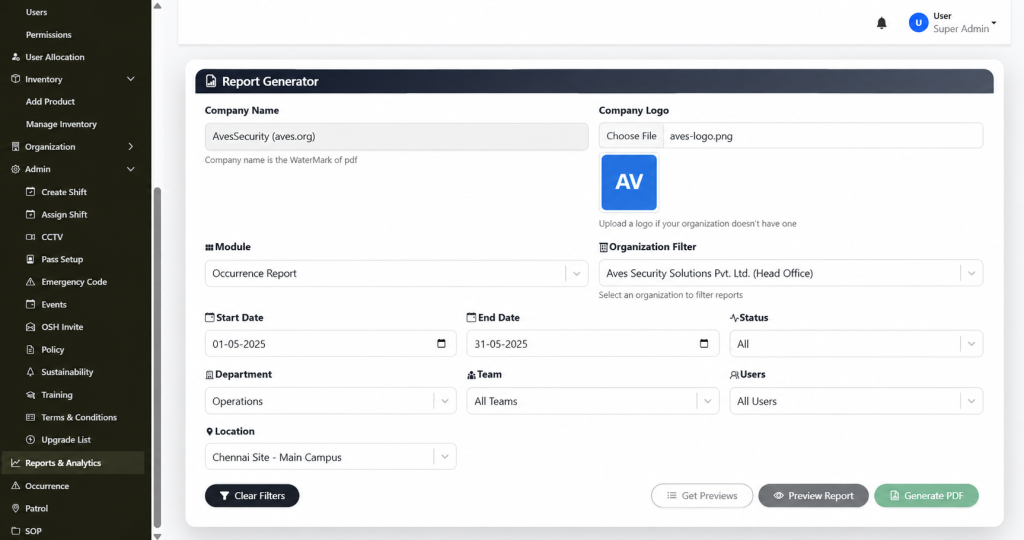
    A dedicated report generator is where this either works or falls apart. A real one lets you set your Company Name, which gets used as the watermark on the exported PDF. It lets you upload a Company Logo and falls back to a clean initials placeholder if you have not uploaded one yet. You pick a Module to define what the report covers. You apply an Organization Filter to scope it. You set a Start Date and End Date. You can narrow further by Status, Department, Team, Users and Location. Then you preview it and generate a branded PDF.

    That is what functioning security reporting looks like when it is built around real filters instead of a vague “export” button that dumps raw data with no formatting.

    The Mistake Most Buyers Make

    Here is something most comparison articles will not tell you. A lot of vendors advertise security reporting software as a headline feature, then the actual export screen turns out to be a single button with no filters, no branding and no date range control.

    The fix is to ask a blunt question before you commit to anything. Can I filter by module, department, team and date range and will the output actually carry my company name and logo? If the honest answer is no, that is not real security reporting software. That is a raw data dump with a nicer name attached.

    Another mistake worth naming. Buyers often assume that once a Generate PDF button exists, the tool is done being evaluated. It is not. You still need to know what that PDF actually looks like once it lands in your hands, because a cluttered, unbranded export creates almost as much extra work as building the report yourself.

    Being Honest About What Is Still Unproven

    Trust gets built through honesty, not perfect promises, so here is the part worth saying plainly. A filter-rich report generator is a strong sign of serious security reporting software, but a few things still need to be confirmed before anyone should treat this as a finished picture.

    It is not yet clear whether the Organization Filter supports comparing multiple organizations side by side in one report, or whether it is scoped to one organization at a time. It is not yet confirmed whether reports can be scheduled to run automatically, or whether every export has to be triggered manually. And the exact layout of the finished PDF, once generated, has not been reviewed yet.

    None of that changes the core value of what is confirmed. It just means anyone evaluating security reporting should ask these specific questions directly, rather than assuming the answer based on what a filter panel implies.

    What It Feels Like Once It Actually Works

    Picture the next time a client asks for a report. Instead of opening a spreadsheet, you open Reports & Analytics. You pick the module, set your date range, apply the department and location filters you already know matter and click Preview Report. Your company name is already watermarked in. Your logo is already sitting in the corner. You click Generate PDF and you are done.

    That is the practical payoff of choosing a tool built with real filtering and branding in mind, instead of treating export as an afterthought. The report stops being a task you dread and becomes something you produce in minutes.

    Over time this compounds. Clients start associating your reports with a professional, consistent look. New admins on your team can generate the same report without you walking them through it. Compliance requests stop turning into fire drills.

    Deciding If This Is Right For You

    You do not need to take a vendor’s word for how well their security reporting software actually performs here. Ask for a live demo where they generate a real PDF in front of you, with a real module, a real date range and their own branding applied. Watch whether the filters actually narrow the data or just sit there decoratively.

    If what comes out the other end is a clean, watermarked, properly filtered document, you are looking at security reporting software built around how reports actually get used, not just how they get advertised.

    You already know your operation needs faster, cleaner reporting than a spreadsheet built at the last minute. The question now is simply finding a version of security reporting software honest enough to show you exactly what the export looks like before you commit to it.

    Quick Answers Before You Move Forward

    Is security reporting software the same as a full analytics suite? No and it is worth being clear about that difference. A login dashboard style of security reporting software gives you a real-time summary. A full analytics suite adds scheduled exports and cross-site comparisons on top of that. Many teams only need the first one to start.

    How long does it take to see value from security reporting software? If the dashboard pulls from real activity already happening in your other modules, value shows up on day one. You are not waiting weeks for data to accumulate before the numbers mean anything.

    What should disqualify a vendor during a demo? If their version of security reporting cannot show you a live login with real counts and instead relies on screenshots or a promise that “it will look like this,” treat that as a warning sign rather than a minor gap.

    Ready to see it yourself? Book a live walkthrough and watch a branded report get generated in real time, filters and all.

    CONTACT US

    Website : https://www.avessecurity.com

    Linkedin: https://www.linkedin.com/company/aves-security-management-system/

    Instagram: https://www.instagram.com/avessecurity/

    What is security reporting?

    Security reporting software is a digital solution that helps security companies create, manage and export professional reports for incidents, patrols, attendance, audits and daily operations from a centralized platform.

    Do I need to upload a company logo to generate a report?

    No. The Company Logo field is optional reports still generate with the watermark from your Company Name even without a logo.

    Can I filter a report by department or team specifically?

    Yes. Department, Team and Users are all separate, optional filters, so you can narrow a report down to a specific group rather than pulling everything.

    How does security reporting software improve reporting efficiency?

    Security reporting software eliminates manual paperwork by allowing users to filter data, generate branded PDF reports and access records instantly, reducing reporting time from hours to minutes.

    Who can benefit from security reporting software?

    Security agencies, facility management companies, corporate security teams, hospitals, educational institutions, residential communities, manufacturing plants and commercial campuses can all benefit from security reporting software.

    How secure is the data stored in security reporting software?

    Reliable security reporting software protects data through user authentication, role-based permissions, encrypted storage and detailed activity logs to ensure only authorized users can access sensitive information.

    Why should I replace spreadsheets with security reporting software?

    Unlike spreadsheets, security reporting software automatically organizes data, reduces human errors, generates professional reports instantly and provides searchable digital records that improve productivity and client confidence.

    Can reports be filtered before exporting?

    Yes. Most advanced security reporting software lets users filter reports by module, date range, location, department, team, user, or report status before generating the final PDF.

    Is security reporting software suitable for multi-site security operations?

    Yes. Good security reporting software enables organizations to filter reports by location, department, team, or site, making it easier to manage multiple security operations from one platform.

    Is security reporting software the same as a full analytics suite?

    No and it is worth being clear about that difference. A login dashboard style of security reporting software gives you a real-time summary. A full analytics suite adds scheduled exports and cross-site comparisons on top of that. Many teams only need the first one to start.

  • Lone Worker App: 3 Steps to Duty of Care

    Lone Worker App: 3 Steps to Duty of Care

    A lone worker app exists to answer one question: if a guard on a night patrol, a technician on a remote site visit or a caregiver doing a solo home visit runs into trouble, how quickly does anyone else find out? Duty of care doesn’t mean eliminating that risk; it means building a system that notices quickly if something’s gone wrong and gets help moving before too much time passes.

    A lone worker app is built from three pieces: a way to check in, a way to raise an alarm and a clear path for what happens next.

    This piece walks through what each of those three pieces should do in a lone worker app and why the gaps between them are usually where duty-of-care programs actually fail not in any single feature, but in the seams connecting them.

    Why a lone worker app isn’t one feature

    It’s tempting to think of a lone worker app as a single button press it, help comes. In practice it’s a chain: something has to prompt a check-in or accept a manual alert, something has to notice if that check-in doesn’t happen, someone has to be notified and someone has to actually respond.

    A lone worker app that’s strong on the alert button but has no defined escalation path leaves a worker’s safety depending entirely on them successfully pressing a button while in distress which is exactly the scenario the app is meant to cover for.

    Check-ins: what a lone worker app should log

    The simplest and most common layer is a scheduled or location-triggered check-in a worker confirms they’re safe at set intervals or a system logs their presence automatically as they move through defined zones.

    Geofence-based attendance is one practical way to do this: a check-in is recorded automatically when a worker enters or exits a defined area, tied to their shift and location rather than relying on them to remember to tap something on a schedule.

    AVES supports this model today geo-verified attendance that ties a worker’s location to their roster, so presence at a site is a timestamped, auditable fact rather than a guard’s word.

    That’s a genuinely useful foundation for duty of care: it gives a supervisor a record of where someone was and when, which is the raw material any escalation decision depends on.

    What it doesn’t do on its own is tell anyone that a check-in was missed and automatically start a countdown toward escalation that’s a distinct piece of logic, covered below.

    Manual alerts: what a lone worker app needs beyond check-ins

    The second layer is the one a worker triggers themselves when they know something’s wrong a duress or SOS alert. AVES provides this as a standing feature: real-time SOS alerts and notifications that fire the moment someone raises them, rather than waiting for a shift-end report.

    This is the layer that matters most in the seconds after an incident, because it doesn’t depend on a scheduled check-in cycle catching up it’s immediate and it’s under the worker’s control.

    The honest caveat here is that a manual alert only works if the worker is conscious, free and physically able to reach a device which is precisely the situation that fails after a fall, an assault or a medical event.

    That’s the gap that automated detection layers (below) are built to close and it’s worth knowing whether that gap matters for your specific risk profile before assuming a manual SOS button alone is sufficient duty of care.

    What a lone worker app should escalate to and what’s confirmed here

    This is where a genuine duty-of-care program typically adds two more pieces and it’s also where we want to be precise about what AVES currently offers versus what’s standard across the broader lone-worker category:

    • Missed check-in escalation if a scheduled or expected check-in doesn’t happen, the system automatically notifies a supervisor or escalation contact after a defined grace period, without anyone having to notice the absence manually.
    • Man-down / no-motion detection using device sensors to detect a fall, an impact or a prolonged period without movement and triggering an alert automatically, with no action required from the worker at all.

    Both of these are common in dedicated lone-worker platforms and both close the gap that manual SOS alerts and simple attendance check-ins leave open.

    As of this writing, we haven’t found either of these confirmed as a current AVES feature the site documents SOS alerts and geo-verified attendance clearly, but doesn’t describe automated missed-check-in escalation or motion-based man-down detection.

    If your program specifically needs those two capabilities, that’s worth confirming directly rather than assuming they’re bundled in.

    What duty of care asks of a lone worker app

    Setting aside any specific product, a defensible lone worker app generally needs to be able to answer a few questions after the fact, not just in the moment:

    • Who was working alone, where and during what window? this is what shift and roster data, tied to geo-verified check-ins, gives you.
    • Was there a way for that person to raise an alarm and did it reach someone in real time? this is what an SOS/alert feature answers.
    • If they couldn’t raise an alarm themselves, would anyone have known? this is the question that missed-check-in escalation and man-down detection exist to answer and it’s the one worth pressure-testing against whatever system you’re evaluating.
    • Is there a record of all of it afterward? for compliance and for reviewing what worked or didn’t after an incident.
    • Duty of care for lone and isolated workers isn’t just good practice in many jurisdictions it’s a legal obligation. In the US, the OSHA General Duty Clause requires employers to provide a workplace free from recognized hazards, which extends to workers operating without direct supervision.
    • In the UK, the HSE’s guidance on lone workers sets out specific expectations for risk assessment and monitoring. A lone worker app is one way to operationalize that obligation but the obligation exists independent of whichever tool you choose to meet it.

    Building the escalation path into a lone worker app

    Whatever combination of check-in and alert features a lone worker app provides, the escalation path itself is a policy decision that sits on top of the tooling, not inside it:

    • Define the grace period how long after a missed check-in before someone is notified. Too short and you get alert fatigue; too long and the point of the system is lost.
    • Name a real escalation contact, not “security” as an abstraction a specific role that’s staffed and reachable during the hours lone workers are actually out.
    • Set a secondary escalation tier if the first contact doesn’t acknowledge within a set window, who’s next.
    • Decide what “resolved” looks like a check-in resuming, a supervisor physically confirming the worker’s status or an explicit stand-down. Don’t leave an open alert quietly aging out.

    Where this leaves you

    If your lone worker exposure is mostly about knowing where people were and giving them a fast way to call for help, geo-verified check-ins paired with real-time SOS alerts both of which AVES supports today cover a meaningful part of that duty-of-care picture.

    If your risk profile specifically requires automatic detection when someone goes silent or goes down without pressing anything, that’s a distinct capability worth confirming directly before you build a program around the assumption it’s already there.

    FAQ

    What is a lone worker app?
    It’s software that keeps tabs on employees working alone a night guard, a field technician, someone doing a solo home visit. Check-ins, an alert button and someone on the other end who actually responds.

    What features matter most?
    A way to log that someone’s okay (usually location-based check-ins), a button they can press if something’s wrong and a plan for what happens if neither of those things checks out.

    Can the app handle everything on its own?
    Not really. The app can send alerts, but someone still has to decide the grace period, who gets called first and when an alert counts as closed. That part’s on the organization.

    Is this legally required?
    Often, yes. OSHA’s General Duty Clause in the US and HSE guidance in the UK both put the responsibility on employers to protect workers who aren’t directly supervised.

    Does AVES have this?
    AVES does geo-verified check-ins and real-time SOS alerts. Automatic missed-check-in escalation and man-down detection we’d check with AVES directly before assuming those are included.

  • AVES Occurrence Log Walkthrough: How Daily Occurrence Reporting Works

    AVES Occurrence Log Walkthrough: How Daily Occurrence Reporting Works

    Every security site racks up dozens of small, easy to forget moments in a single week. A jammed door. A strange vehicle circling the lot twice. A guest who wandered somewhere they shouldn’t have.

    None of it is a full blown incident on its own. But it all matters. Without occurrence reporting software, these details end up living in a supervisor’s memory, a scribbled note, or nowhere at all. Ask what happened last Tuesday night three weeks later and good luck getting a straight answer.

    That’s the real cost of paper based occurrence tracking. It’s not one dramatic failure. It’s a slow leak of institutional memory, one shift at a time. Occurrence reporting software exists to plug that leak. A security occurrence logging system that actually sits inside a guard’s daily dashboard, rather than a side notebook nobody can find, turns “I think someone mentioned that” into something you can actually pull up and read.

    What Occurrence Reporting Software Actually Replaces

    Before any of this existed, most sites ran on an occurrence book. A physical logbook handed from shift to shift. It worked, more or less, right up until the book went missing, a page tore out, or the night guard’s handwriting turned out to be unreadable by morning.

    Occurrence book software solves the exact problem the paper version was built for, minus the physical object that gets lost, spilled on, or left in the wrong guard shack.

    In AVES, all of this lives under one module, simply called Occurrence, reached from the sidebar via Occurrence → Daily Occurrence Log. Worth saying plainly, this is occurrence reporting software in its most stripped down form. It’s not trying to be an escalation engine or some severity scoring dashboard. It’s a structured place to log what happened, who logged it and whether it needs a second look.

    How the Occurrence Log Actually Works

    Here’s security occurrence logging in practice, the actual steps, as they run inside the AVES dashboard.

    Go to Occurrence → Daily Occurrence Log. Click Add Occurrence, top right. Fill in the form: Occurring Time, Location (pulled from a dropdown of existing locations, not free text), Reported By, Nature of Incident, Description, Action Taken, Follow-up Required (a Yes/No dropdown) and Supervisor Name Remark. Click Submit.

    The entry lands in the Daily Occurrence Log table with a Serial Number, Recording Date & Time, Occurring Time, Title, Follow-up Required status and an Actions column.

    From there, Actions gives a supervisor three moves. View Details on the full record. Edit any field. Or Delete the entry outright. A confirmation prompt fires first, so nothing vanishes by accident. That’s the whole lifecycle of one entry in this occurrence reporting software. Log it, review it, act on it if it needs acting on.

    Two Fields That Do Different Jobs

    Here’s a small detail in this event logging software for security teams that trips people up. Nature of Incident and Description look similar, but they’re not meant to duplicate each other.

    Nature of Incident is the short label, a quick tag for what kind of thing happened. Description is the fuller account, in the reporting guard’s own words.

    Treat them as interchangeable and you’ll under-use the whole feature. Fill in both properly and the log turns into something a supervisor can actually scan a week later without opening every single record one by one.

    Why a Security Event Recording System Beats a Notebook

    The case for a real security event recording system over a paper occurrence book was never about looking modern. It’s about what happens when something goes sideways three weeks later and someone asks, “didn’t we have trouble at that gate before?”

    A notebook only answers that if someone remembers which page to flip to. A structured log answers it in seconds. Every entry carries the same fields, in the same order, searchable by date, location, or supervisor name.

    That consistency is really the whole point. Occurrence reporting software doesn’t make guards write more. If anything, a dropdown driven form is usually faster than freehand notes. What it does is make what they write usable later.

    Built this way, a security event recording system turns a shift’s worth of scattered observations into one clean, chronological table any admin can pull up from the dashboard. No filing cabinet required.

    What This Occurrence Reporting Software Doesn’t Claim to Do

    Honesty matters more than a padded feature list here. This occurrence book software isn’t an escalation platform. There’s no severity scale attached to an occurrence, just the Follow-up Required Yes/No flag. Marking it Yes doesn’t automatically ping a supervisor.

    It’s a manual review signal, not an automated routing trigger. Any site rolling this out should train guards and supervisors around that fact. Follow-up Required is the only signal in the record that something needs a second look, so defaulting it to No without genuinely reviewing each entry kind of defeats the point of having the flag.

    Getting the Most Out of Security Occurrence Logging

    A few habits make this style of security occurrence logging actually worth the effort.

    Use the Location dropdown on purpose. Since it pulls from pre-set locations rather than free text, consistent location data is what makes searching the log later actually useful.

    Don’t skip Action Taken. It’s easy to log what happened and forget what the guard actually did about it, but that’s often the one detail a client or supervisor cares about most.

    Review Follow-up Required entries on a set schedule, not just whenever someone happens to open the log. There’s no automated escalation here, so the flag only earns its keep if someone’s actually checking it.

    Choosing Occurrence Reporting Software for Your Site

    If you’re sizing up occurrence reporting software for the first time, don’t judge it by how many extra features get bundled in.

    The real test is simpler than that. Does it capture Occurring Time, Location, Reported By, Nature of Incident, Description, Action Taken and Follow-up Required without friction and can you actually find that record again later?

    A security event recording system that nails those basics will beat a bloated one that half does everything, every time. Same goes for occurrence book software sold with dashboards and analytics it can’t really back up. Ask to see the actual entry form before you sign anything.

    The Bottom Line

    Security teams don’t need more paperwork. What they need is occurrence reporting software that turns five minutes of typing into a record that’s still worth something six months from now.

    Call it occurrence book software, call it a security event recording system, or just call it event logging software for security operations. The job underneath is the same. Capture what happened, in a consistent shape, before it disappears into someone’s memory.

    Get that right and “no more lost records” stops being a slogan and starts being how the site actually runs.

    Every site already has these small moments happening every shift. The only question is whether they disappear into someone’s memory or end up somewhere you can actually pull up six months from now.

    Want to see the Daily Occurrence Log in action, the actual form, the actual dashboard in AVES? Book a walkthrough of AVES and watch it happen on a real screen →

    CONTACT US

    Website : https://www.avessecurity.com

    Linkedin: https://www.linkedin.com/company/aves-security-management-system/

    Instagram: https://www.instagram.com/avessecurity/

    What exactly is occurrence reporting software?

    Basically a digital stand-in for the old paper occurrence book. Instead of a guard scrawling something in a notebook that might get lost or torn, they fill in a form, time, location, who reported it, that kind of thing and it just sits there in a searchable table instead of a drawer somewhere.

    Isn’t this basically the same as an incident report?

    Not quite. This is for the smaller stuff. A jammed door, a car circling the lot twice, someone wandering somewhere they shouldn’t. No severity rating or anything like that, just a Follow-up Required flag if something’s worth a second look.

    Can you fix or delete an entry after it’s already submitted?

    Yeah. There’s a View Details option, an Edit option and a Delete option, though deleting asks you to confirm first so you don’t lose something by accident.

    Is “occurrence book software” a different thing from this, or basically the same?

    Same thing, different name. Occurrence reporting software, occurrence book software, event logging software for security, people just call it different things depending on who’s selling it. The job underneath doesn’t change.

    Does this mean guards don’t need to write much anymore?

    Not exactly, it just gives their notes somewhere useful to go. People skip the Action Taken field a lot, honestly and that’s usually the one thing a client actually wants to know.

    Why does Location use a dropdown instead of just letting guards type it in?

    Because if ten different guards type “front gate” ten different ways, good luck filtering by location six months from now. The dropdown keeps things consistent enough to actually search later.

    Nature of Incident vs Description, what’s actually different there?

    People mix these up constantly. Nature of Incident is more of a quick label, like a category. Description is the real story in the guard’s own words. You need both filled in properly or the log ends up half useful.