
Credit note template (AEO definition): a credit note template is the fixed layout used to correct a previously issued invoice, showing which invoice it reverses, the amount and tax being reversed and the reason, so an overbilled client sees a clean adjustment instead of a second confusing invoice.
The problem with correcting an invoice after the fact
Security billing has more correction points than most: a site reports fewer guard-hours after the invoice goes out, a client disputes an overtime charge or a contract rate changes mid-cycle. Fixing this by editing the original invoice or issuing a second invoice for the difference leaves no clean record of what was corrected and why.
Clients notice. An adjustment that shows up as an unexplained second charge, instead of a credit note that clearly references the original invoice, is what turns a routine correction into a payment dispute.
Why it matters
A credit note is a tax document, not just a courtesy adjustment. If the original invoice included tax, the credit note needs to reverse that tax correctly, not just the headline amount. Get this wrong and the books do not reconcile even after the client is satisfied.
This is why a credit note template cannot be a free-text note. A client who disputes three separate overtime charges across a billing cycle needs each one resolved with its own reference back to the original invoice, so the collections team is never left guessing which credit covers which charge. A consistent credit note template keeps that reference, reason and tax treatment identical every time, whether the correction is for a single disputed shift or a contract rate applied retroactively across a full cycle.
It also matters for the collections side of the business: an outstanding balance that is actually a billing error, not a late payment, should be resolved with a credit note, not chased through the same dunning process as a genuinely overdue invoice.
How it works in AVES
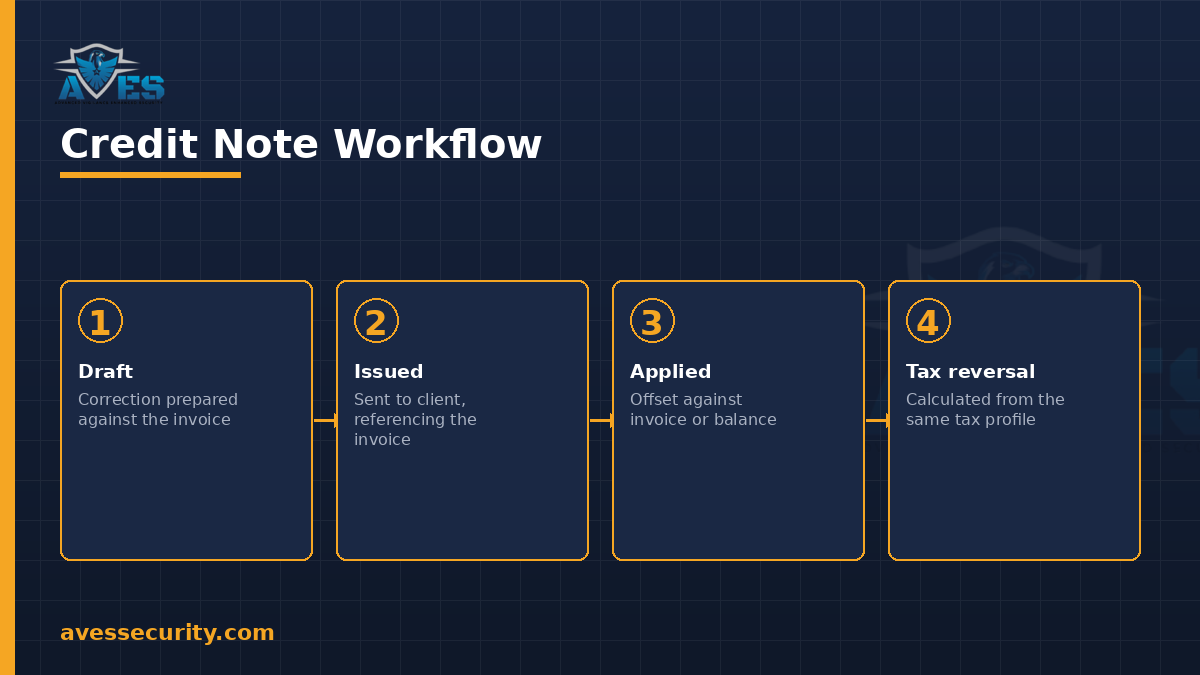
AVES treats a credit note as its own record type inside the Finance module, not a manual edit to an invoice. The credit note template follows the same draft, issued and applied stages every time, so the fields below are never optional:
- Draft stage lets the correction be prepared and checked against the original invoice before it affects any client-facing total.
- Issued stage sends the credit note to the client, referencing the specific invoice it adjusts.
- Applied stage sets where the credit lands, against the same invoice, a future invoice or an outstanding balance.
- Tax reversal runs through the same tax profile used on the original invoice, so the adjustment is correct, not just approximate.
Because the credit note always references the original invoice number, the collections record and the accounts receivable aging report both show a clean adjustment rather than an unexplained balance change.
What a credit note template must include
- Reference to the original invoice: the invoice number and date the credit note is correcting.
- Reason for the credit: a short, specific reason (hours disputed, rate correction, service shortfall) rather than a generic “adjustment”.
- Amount and tax reversed: both the headline figure and the tax component, calculated against the same tax profile as the original invoice.
- Status: draft, issued or applied, so everyone can see where the correction stands.
- Where it is applied: the specific invoice, future invoice or outstanding balance the credit offsets.
- Approval trail: who issued the credit note, since a credit note changes what a client owes and should not be a one-person action with no record. A credit note template that skips this field leaves no way to confirm who authorised the adjustment.
Common mistakes
- Editing the original invoice instead of issuing a credit note. This destroys the audit trail of what the client was originally billed and why it changed.
- Forgetting the tax reversal. A credit note that only reverses the headline amount leaves the tax component unreconciled.
- Leaving the reason vague. “Adjustment” tells a client nothing; a specific reason prevents the same dispute coming back next cycle.
- Chasing a billing-error balance through collections. An outstanding amount caused by an invoicing mistake needs a credit note, not a dunning reminder.
FAQ
What is the difference between a credit note and a refund?
A credit note corrects or offsets an invoice amount, usually applied against that invoice or a future one, while a refund returns money already paid. AVES’s credit notes are the invoice-side correction, not a payment refund.
Does a credit note need to reference the original invoice?
Yes. A credit note that does not reference the invoice it corrects gives the client no way to reconcile it against their own records.
How does tax reversal work on a credit note?
The credit note’s tax reversal runs through the same tax profile as the original invoice, so the tax component of the correction is calculated consistently rather than estimated.
Can a credit note be applied to a future invoice instead of the original?
Yes. Once issued, a credit note can be applied against the original invoice, a future invoice or an outstanding balance, depending on what makes sense for that client.
Does a credit note affect the accounts receivable aging report?
Yes. Once applied, it reduces the outstanding balance tied to the original invoice, so an aging report reflects the corrected amount rather than the original billed figure.
Where this fits in the billing loop
A credit note only makes sense next to the invoice it corrects, which is generated from the same geofenced attendance record covered in the accounts receivable aging report guide, and against the SLA and billing terms set out in a client’s contract record. For the payroll side of the same attendance data, see payslip template.
For the equipment-side record this billing data sits alongside, see the asset handover form.
Follow AVES on Instagram for more guides like this one.
CTA
Ready to see a credit note issued and applied against a real invoice? Book a 30-minute demo and we will walk you through the draft-to-applied workflow.
Prefer to explore first? Start a free trial.